

Merge the profiles
1
Open the duplicate
In the menu, go to Clients and select the profile you want to get rid of.
2
Open the menu
Select the three dots at the top of the profile, then Merge client.
3
Pick the profile to keep
Under Merge into, search for and choose the client to keep.
4
Merge
Select Merge client.
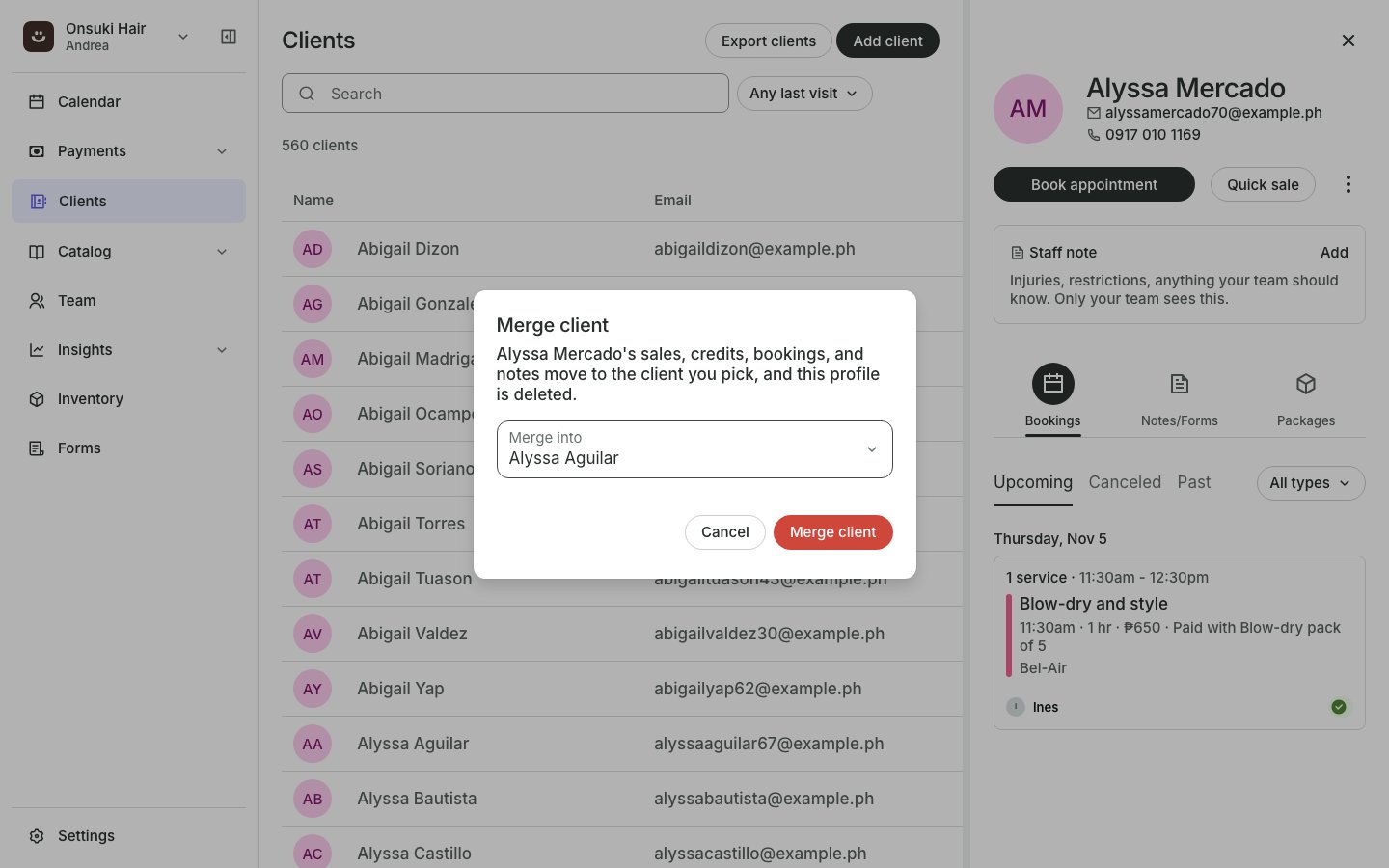
The Merge client dialog
What happens
- Sales, credits, bookings and notes from the duplicate move to the kept client. Package credits add up.
- The duplicate’s email, mobile number, birthday and photo fill in only what the kept client is missing.
- The duplicate’s staff note is added to the kept one.
- The duplicate profile is deleted. This cannot be undone.
Good to know
- If both profiles sign in on their own, they’re two different people, and Onsuki won’t merge them.
- If both are booked into the same class or appointment, Onsuki won’t merge them and says so. Cancel one booking first.