

Before you start
- Set up your bays. See Set up courts or bays.
- Add the food and drinks you sell as products in Inventory. See Add a product.
- Turn on QR Ordering: go to Settings, Business, then Features, turn on QR Ordering under Selling, and select Save. It needs Courts (shown with your own word, such as Bays) and Appointments. See Turn features on and off.
Choose what’s on the menu
1
Open the menu
In the menu, go to QR Ordering, then the Menu tab.
2
Select Edit menu
Select Edit menu. Search your products and tick each one players can order.
3
Save
Select Save. The menu groups items by each product’s category, as your Shop does.
Print the QR codes
1
Open QR codes
Go to QR Ordering, then the QR codes tab. Each bay has its own code.
2
Select Print cards
Select Print cards, tick the bays you want, and choose a Format: Table cards (two A6 cards on an A4 sheet, to stand in a holder) or Round stickers (six 80 mm circles on an A4 sheet of sticker paper).
3
Print and place them
Select Print, cut on the corner marks, and put each card where players at that bay can scan it.
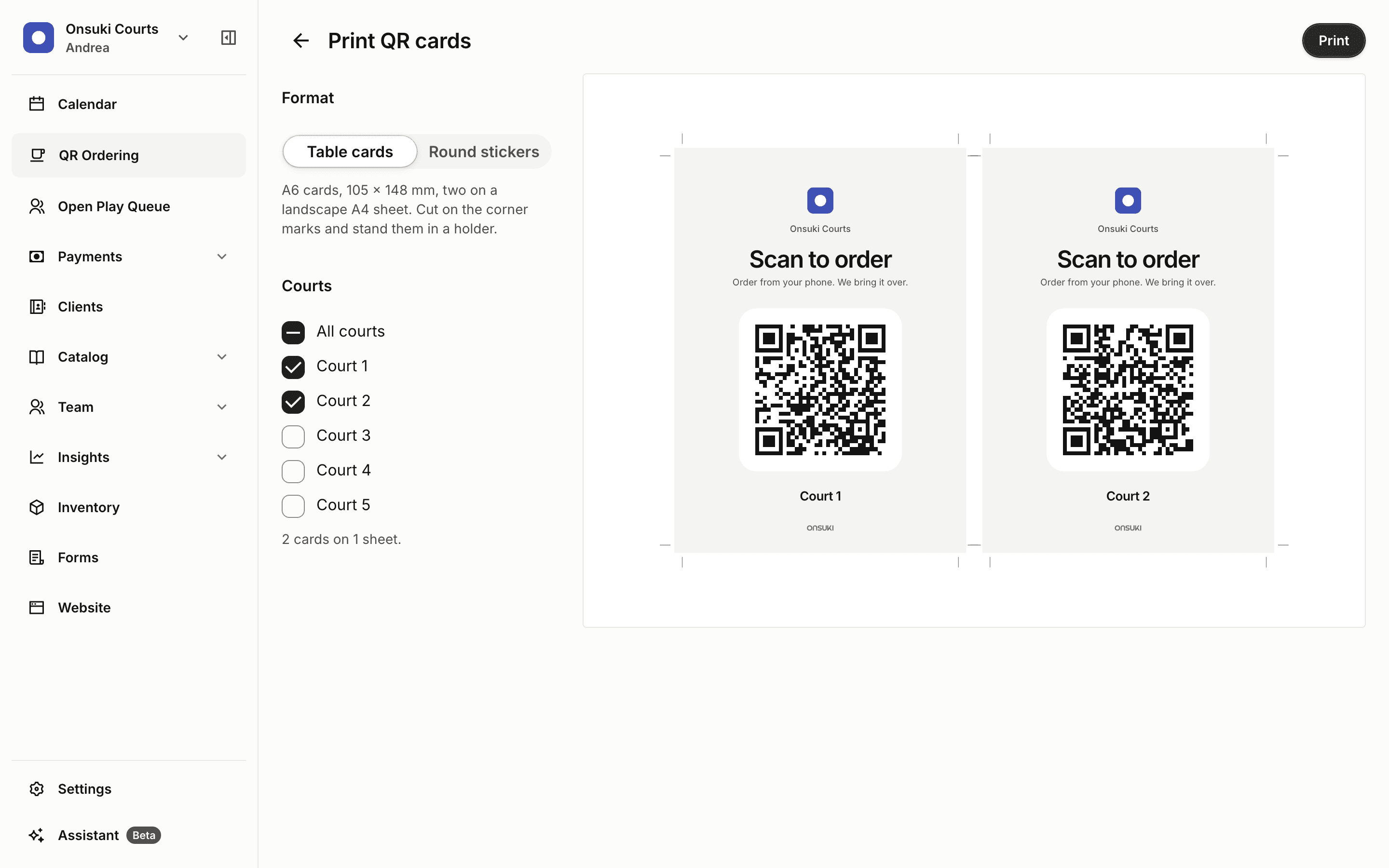
Print QR cards, with table cards for two courts
What players see
A player scans the code and sees your menu by section, with no sign-in. They choose items, a size if there is one, and how many, then select Send order. Each order shows Sent, Being made, On its way and Delivered as your team works it. Everything ordered from a bay goes on the booking’s tab. Players see the tab, with the bay booking itself if it isn’t paid yet, and can select Pay the tab to pay from their phone, or pay in person when they’re done. Ordering is open only while a booking is on the bay, from its start to its end.Work the orders
The Orders tab is your bar’s board, with four columns: New, Preparing, Ready and Delivered. It updates by itself every few seconds. Turn on Sound at the top to hear a tone when a new order comes in.1
Start an order
On a card in New, select Start. The card shows the bay, the items, any note, the total and how it’s being paid.
2
Mark it ready
Select Ready when it’s made.
3
Mark it delivered
Select Delivered when it reaches the bay.
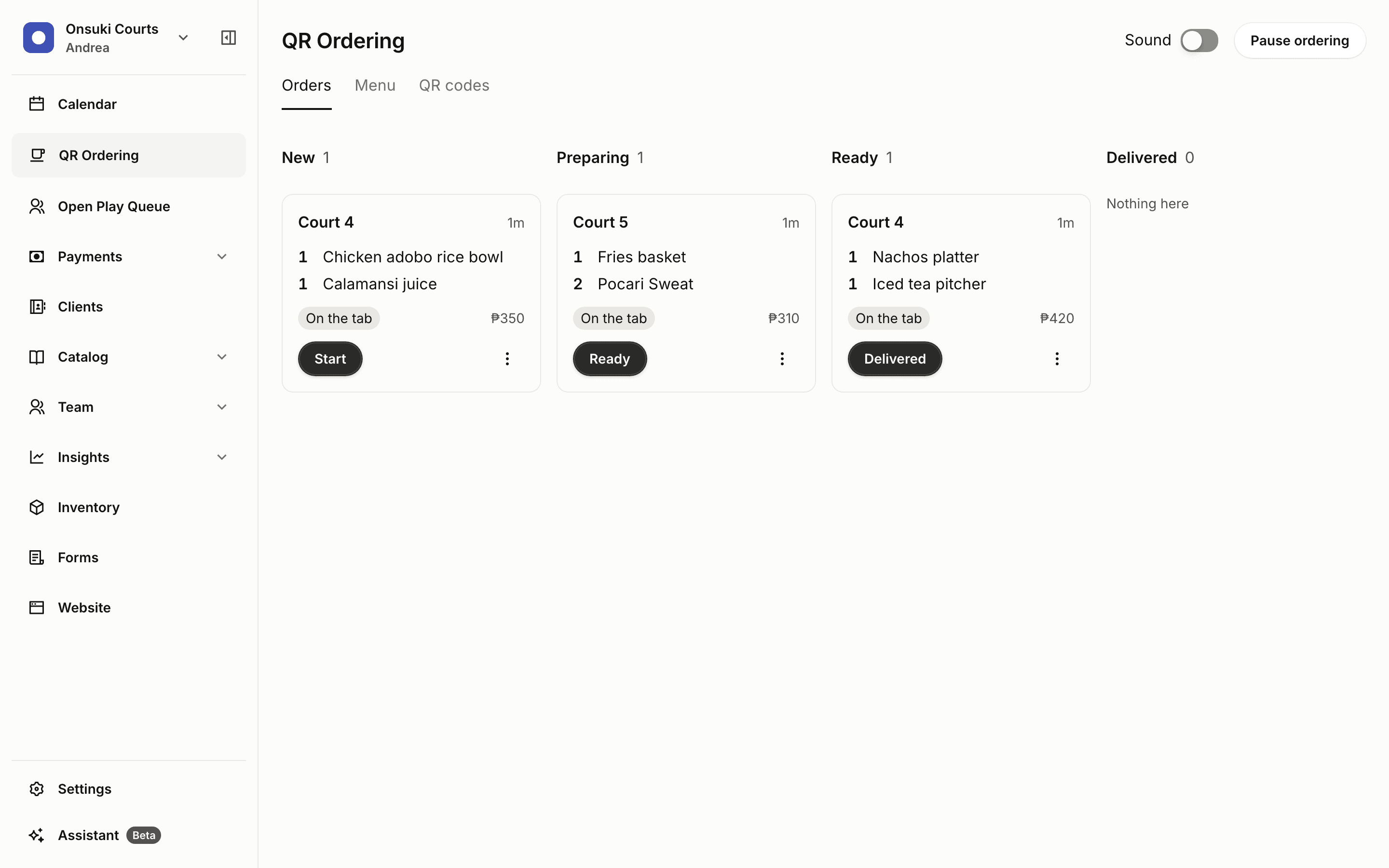
The QR Ordering board
Take an item off an order
Select the three dots on the card, then Take off and the item. Onsuki shows exactly what comes off the tab before you confirm.Mark an item sold out
On the Menu tab, select Available beside the item, then Sold out until tomorrow or Sold out until I turn it back on. Players see it as Sold out. Select Make available to put it back.Pause ordering
Select Pause ordering at the top of the page. Pause every bay for 30 minutes, for 1 hour, or until you turn it back on, or pause one bay. While paused, players are told to ask the staff or try again in a few minutes. Select Turn ordering back on when you’re ready.Settle the tab
The tab joins the booking’s own balance: the calendar shows one figure for the bay and the food together. Settle it the way you take any payment, from the booking or from Unpaid with Mark as paid. The bay and the food are paid in one payment. If the player already paid from their phone, it shows as paid, or as a receipt to check. Above the board, Bay bills still open (or Court bills still open) lists bookings that ended in the last 24 hours with a tab unpaid. Select Open booking to settle one.Good to know
- There’s no limit on a tab. Check the bills still open and Unpaid before you close for the day.
- Keep the board open on a tablet at the bar.
- Editing the menu needs the Manage retail items and inventory permission. QR codes needs Manage business details.
- A player who scans before the booking starts is told ordering opens when the booking starts.