

Open a payment
1
Open your account
Sign in on the business’s booking site, select your photo or initials at the top, then select the Payments tab.
2
Find the payment
Payments are listed by month. To find one, filter by status, for example payments the business is still checking.
3
Open it
Select a payment to see what it was for, how you paid, the reference, and the receipt you sent if you paid by transfer.
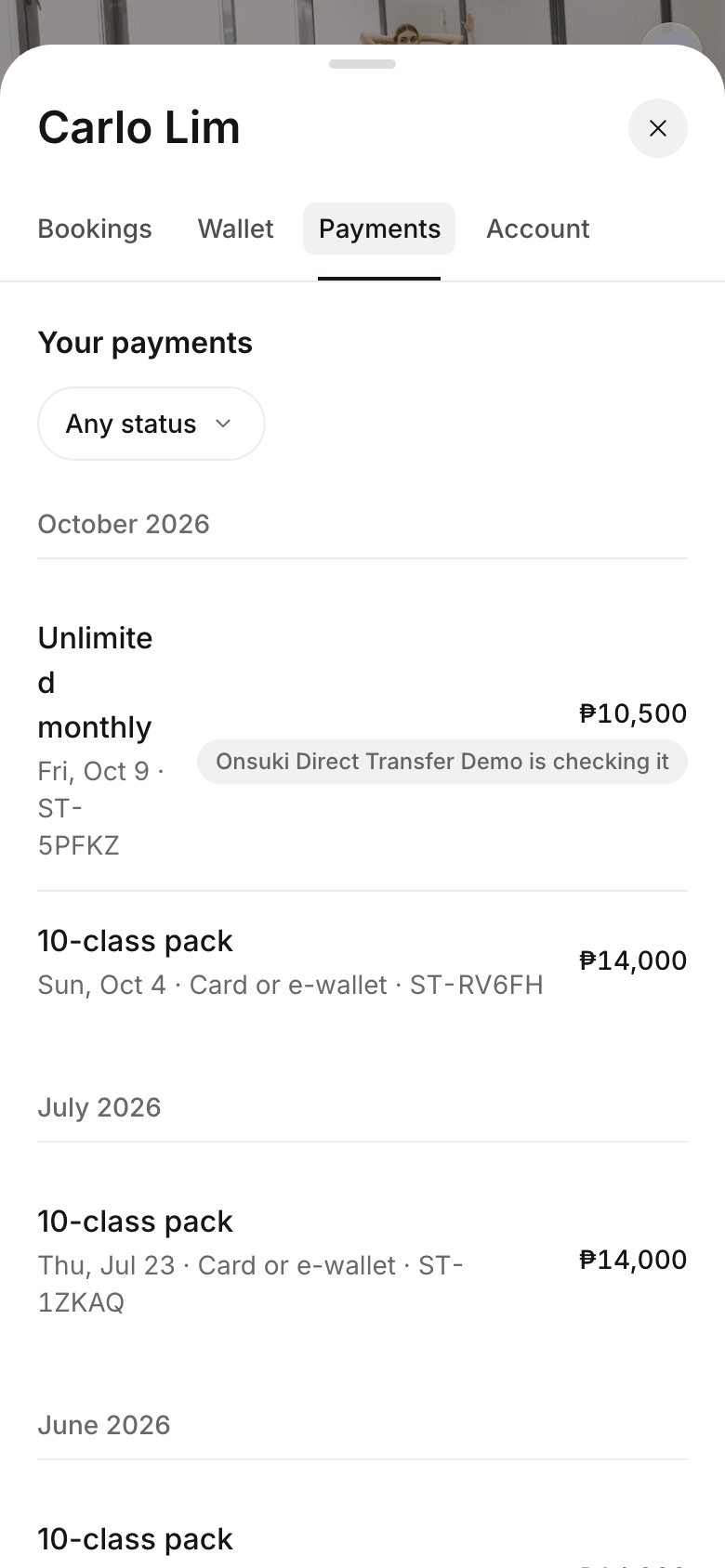
The Payments tab in your account
Save a receipt
On a payment, select Print or save as PDF. This is not an official receipt; if you need one, ask the business.Good to know
- A payment the business is checking says so. If they turned down your receipt, the payment says Turned down, and you can select Send another receipt.
- A payment that isn’t finished has Finish paying. See Pay what you owe.
- A refunded payment shows the amount refunded. For a question about a refund, contact the business.
- Give the reference when you contact the business about a payment.