

Move an appointment or a court booking
1
Open your bookings
Sign in on the business’s booking site and select your photo or initials at the top.
2
Change the time
On the Bookings tab, select Change time on the booking.
3
Pick the new time
Choose a day and a new time. The page says “Only the time changes. Nothing more to pay now.”
4
Confirm
Select Move appointment. For a court booking, select the button at the bottom.
Move a class to another time
1
Open the class
On the Bookings tab, select the class’s name.
2
Choose a new time
Select Move to another time, then choose a class under New time.
3
Confirm
Select Move booking. Your spot and how you paid move with you.
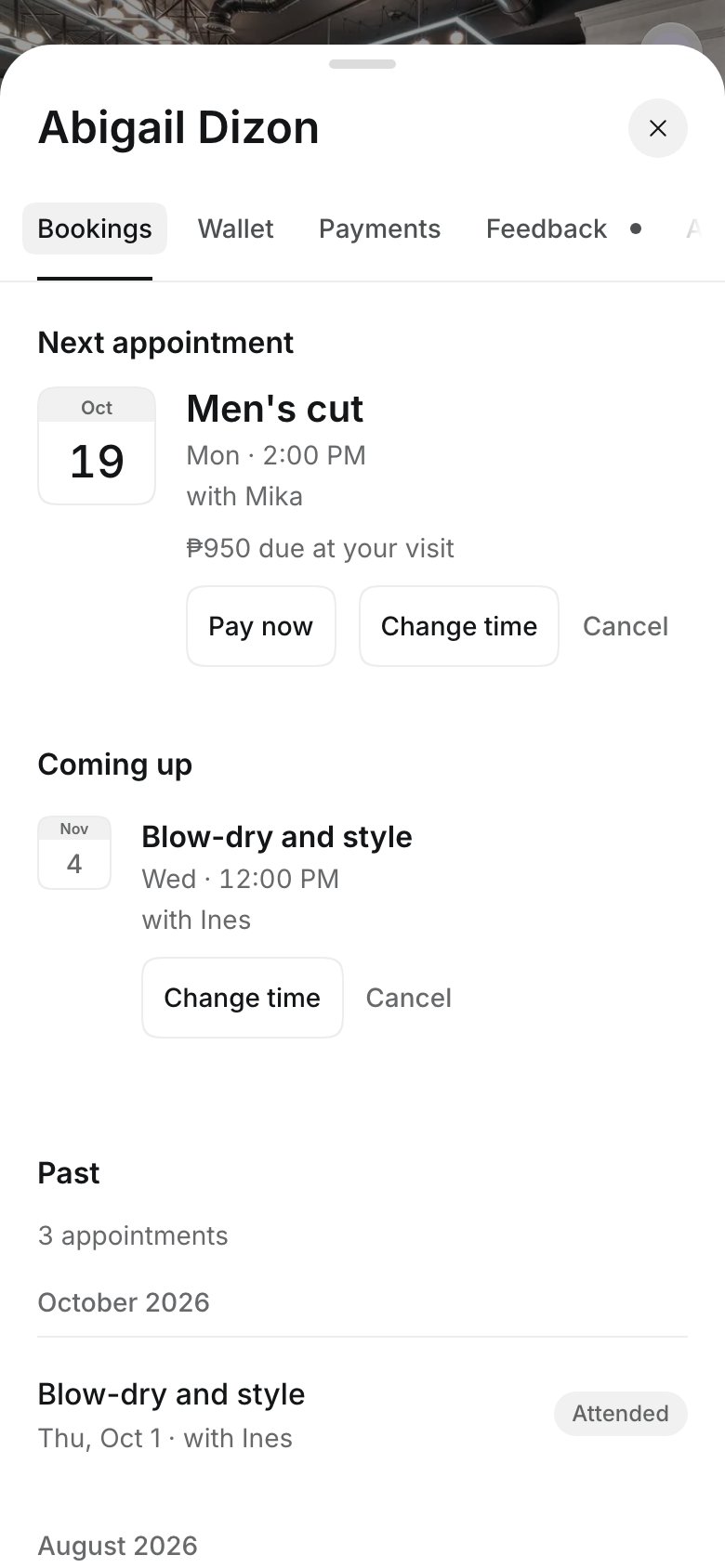
Change time on an appointment
Good to know
- Change time shows only inside the free cancellation time. After that, you can still cancel (with what it costs), or contact the business to move it.
- A class shows Move to another time only when the same class runs again in the next four weeks with room for you. Classes where you picked your own spot can’t be moved this way: cancel and book again, or contact the business.
- If the business moves your booking, you get an email with the new time.