

Send the form
1
Open the client
In the menu, go to Clients and select the client.
2
Open Send form
Select the three dots at the top of their profile, then Send form.
3
Choose the form
Choose the Form. If the account has more than one person, choose who it’s For.
4
Send
Select Send.
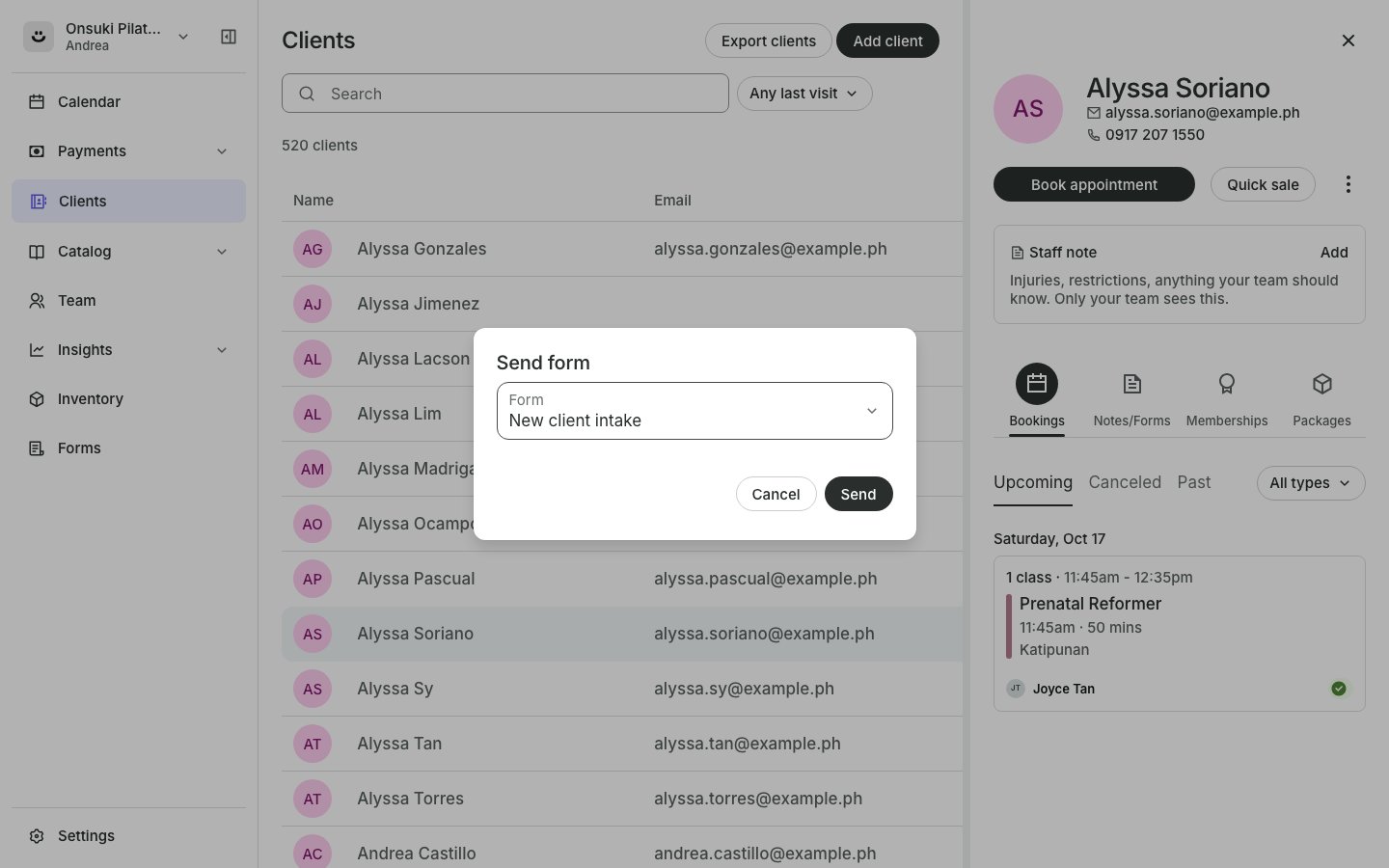
The Send form dialog
Send it again
On Forms, Sent forms, select the three dots on the row, then Send again. For a form a booking is waiting on, the client’s Notes/Forms tab also has Resend form on the form’s menu.Good to know
- The client needs an email address on their profile.
- To share a booking’s form another way, such as by text, use Copy form link on the form’s menu on the client’s Notes/Forms tab.
- Send form shows only when you have at least one published form.