> ## Documentation Index
> Fetch the complete documentation index at: https://help.onsuki.com/llms.txt
> Use this file to discover all available pages before exploring further.
# Add a team member's photo and bio
> The photo, title and bio clients see when they choose who to book.
export const WhoCanDoThis = ({permission, feature, plan, devices}) => {
const rows = [];
if (permission) rows.push(["Who can do this", `Owners, and anyone with the ${permission} permission`]);
if (feature) rows.push(["Feature", `${feature}, turned on in Settings, Business, Features`]);
if (plan) rows.push(["Plan", `${plan} and above`]);
if (devices) rows.push(["Works on", devices]);
if (!rows.length) return null;
return
{rows.map(([label, value]) =>
{label}: {value}
)}
;
};
A photo and a short bio help clients choose who to book. They show on your booking site's Staff page.
## Edit the profile
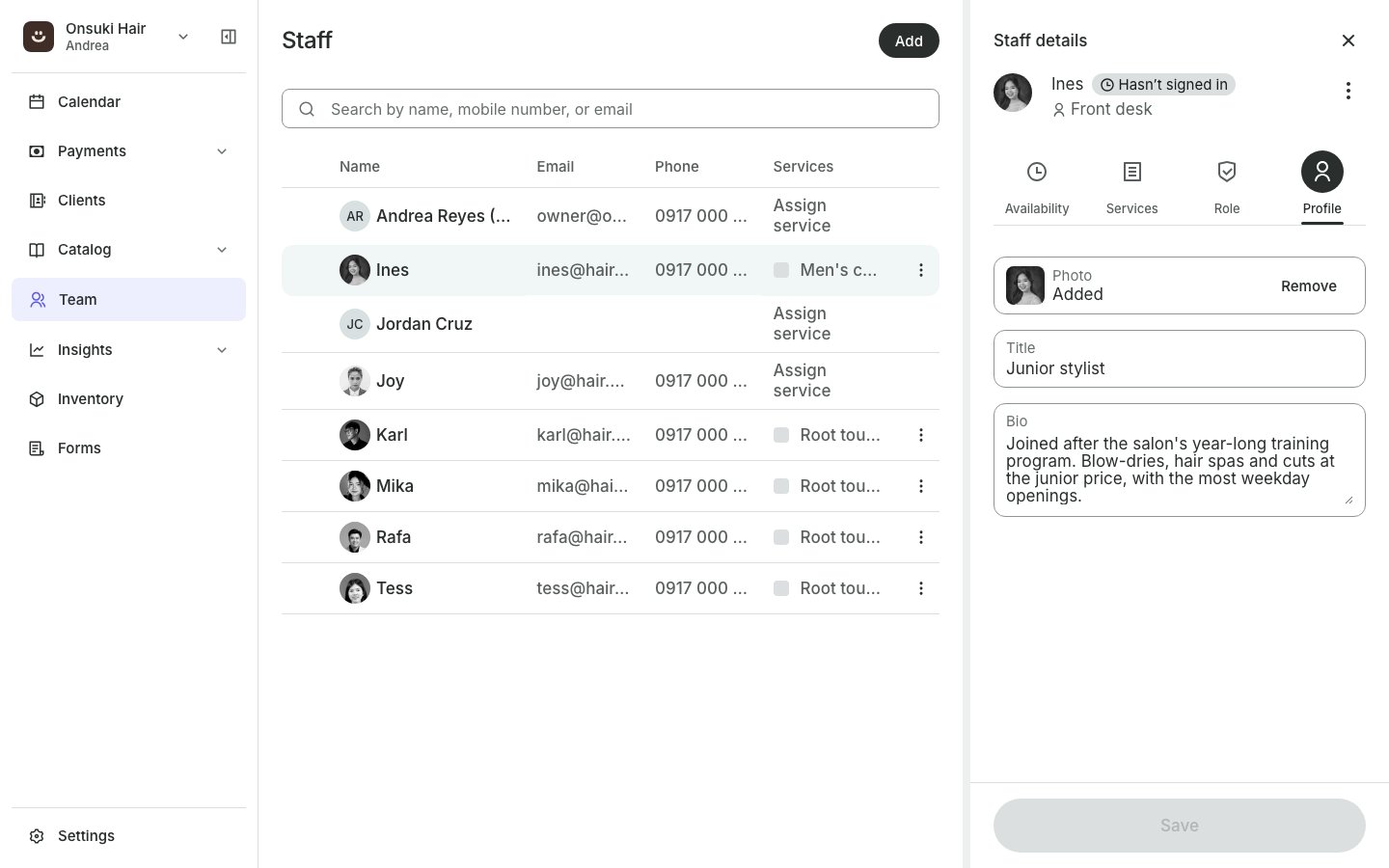
In the menu, go to **Team** and select the person.
Select the **Profile** tab.
Under **Photo**, upload a picture of them. A clear, square photo of their face works best.
Enter a **Title**, such as "Senior stylist", up to 60 characters. Write a short **Bio**, up to 1,000 characters.
Select **Save**.
 You see "Profile saved."
## Good to know
* Anyone can edit their own profile: select your name under **Team** or **My Schedule**.
* If the person has a staff level, your booking site shows the level as their title instead of the **Title** you typed. See [Set up staff levels](/business/team/staff-levels).
* If a photo won't upload, try a smaller JPEG or PNG.
* Your own name, email and sign-in photo are in **Settings**. See [Update your name, email and photo](/business/account/your-details).
## Related articles
* [Share a team member's booking link](/business/team/booking-link)
* [Set up staff levels](/business/team/staff-levels)
* [Update your name, email and photo](/business/account/your-details)
This documentation is built and hosted on [Mintlify](https://mintlify.com), a developer documentation platform.
You see "Profile saved."
## Good to know
* Anyone can edit their own profile: select your name under **Team** or **My Schedule**.
* If the person has a staff level, your booking site shows the level as their title instead of the **Title** you typed. See [Set up staff levels](/business/team/staff-levels).
* If a photo won't upload, try a smaller JPEG or PNG.
* Your own name, email and sign-in photo are in **Settings**. See [Update your name, email and photo](/business/account/your-details).
## Related articles
* [Share a team member's booking link](/business/team/booking-link)
* [Set up staff levels](/business/team/staff-levels)
* [Update your name, email and photo](/business/account/your-details)
This documentation is built and hosted on [Mintlify](https://mintlify.com), a developer documentation platform.