> ## Documentation Index
> Fetch the complete documentation index at: https://help.onsuki.com/llms.txt
> Use this file to discover all available pages before exploring further.
# Send a form to a client
> Email a client a form to fill in before their visit.
export const WhoCanDoThis = ({permission, feature, plan, devices}) => {
const rows = [];
if (permission) rows.push(["Who can do this", `Owners, and anyone with the ${permission} permission`]);
if (feature) rows.push(["Feature", `${feature}, turned on in Settings, Business, Features`]);
if (plan) rows.push(["Plan", `${plan} and above`]);
if (devices) rows.push(["Works on", devices]);
if (!rows.length) return null;
return
{rows.map(([label, value]) =>
{label}: {value}
)}
;
};
Send any published form to a client by email, for example a form you set to **Only when you send it**, or one a client forgot to fill in.
## Send the form
In the menu, go to **Clients** and select the client.
Select the three dots at the top of their profile, then **Send form**.
Choose the **Form**. If the account has more than one person, choose who it's **For**.
Select **Send**.
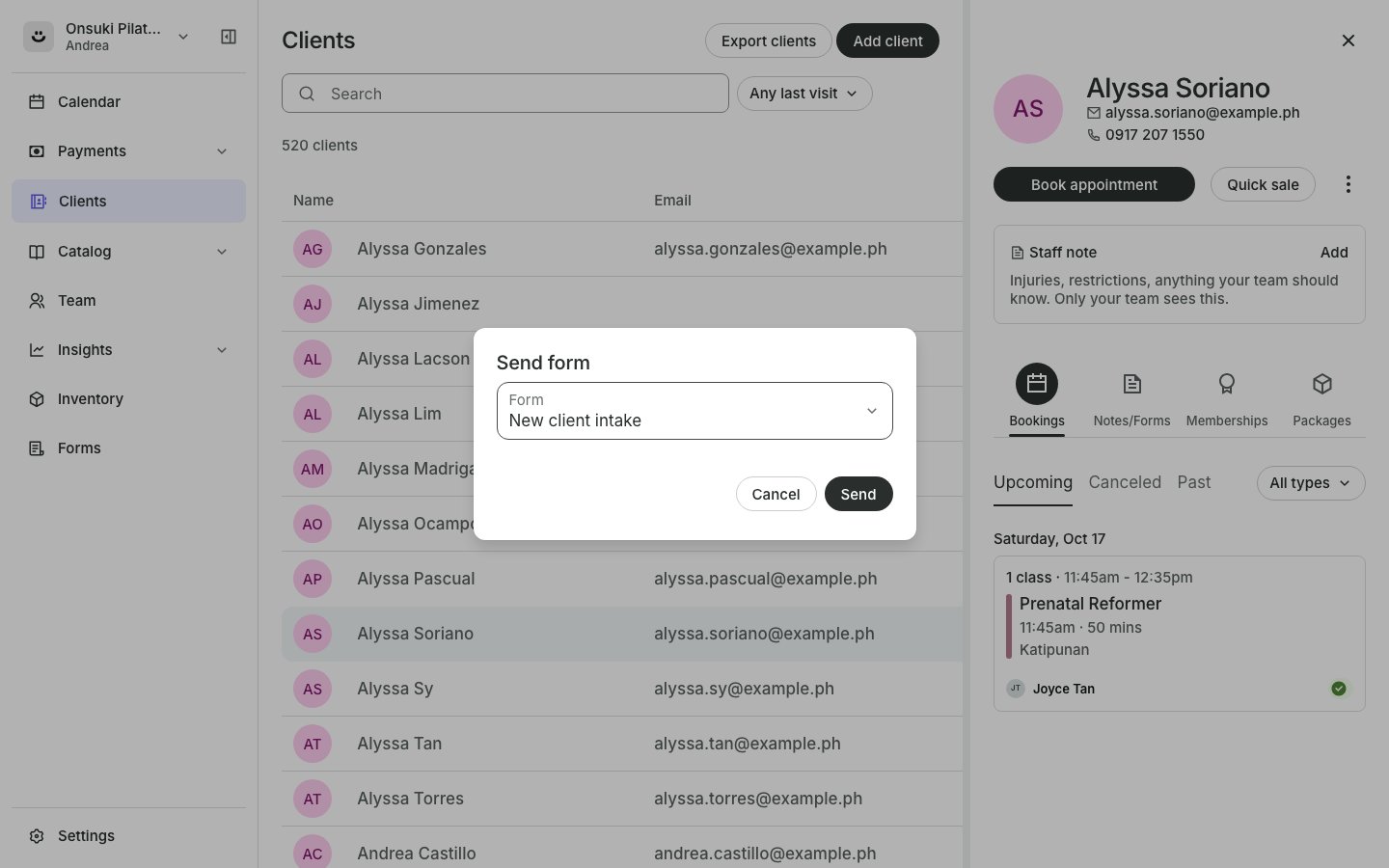 You see "Form sent." The client gets an email with a link to fill it in on your booking site. The form shows on **Forms**, **Sent forms** as **Waiting** until they finish.
## Send it again
On **Forms**, **Sent forms**, select the three dots on the row, then **Send again**. For a form a booking is waiting on, the client's **Notes/Forms** tab also has **Resend form** on the form's menu.
## Good to know
* The client needs an email address on their profile.
* To share a booking's form another way, such as by text, use **Copy form link** on the form's menu on the client's **Notes/Forms** tab.
* **Send form** shows only when you have at least one published form.
## Related articles
* [See a client's completed forms](/business/forms/see-completed-forms)
* [Require a form for a service or class](/business/forms/require-a-form)
* [Fill in a form at the front desk](/business/forms/fill-in-at-the-front-desk)
This documentation is built and hosted on [Mintlify](https://mintlify.com), a developer documentation platform.
You see "Form sent." The client gets an email with a link to fill it in on your booking site. The form shows on **Forms**, **Sent forms** as **Waiting** until they finish.
## Send it again
On **Forms**, **Sent forms**, select the three dots on the row, then **Send again**. For a form a booking is waiting on, the client's **Notes/Forms** tab also has **Resend form** on the form's menu.
## Good to know
* The client needs an email address on their profile.
* To share a booking's form another way, such as by text, use **Copy form link** on the form's menu on the client's **Notes/Forms** tab.
* **Send form** shows only when you have at least one published form.
## Related articles
* [See a client's completed forms](/business/forms/see-completed-forms)
* [Require a form for a service or class](/business/forms/require-a-form)
* [Fill in a form at the front desk](/business/forms/fill-in-at-the-front-desk)
This documentation is built and hosted on [Mintlify](https://mintlify.com), a developer documentation platform.