> ## Documentation Index
> Fetch the complete documentation index at: https://help.onsuki.com/llms.txt
> Use this file to discover all available pages before exploring further.
# Add a class from the calendar
> Put a class on the calendar for one day or every week, without leaving the calendar.
export const WhoCanDoThis = ({permission, feature, plan, devices}) => {
const rows = [];
if (permission) rows.push(["Who can do this", `Owners, and anyone with the ${permission} permission`]);
if (feature) rows.push(["Feature", `${feature}, turned on in Settings, Business, Features`]);
if (plan) rows.push(["Plan", `${plan} and above`]);
if (devices) rows.push(["Works on", devices]);
if (!rows.length) return null;
return
{rows.map(([label, value]) =>
{label}: {value}
)}
;
};
Add a class to the calendar where you're already looking, the same way you add times on the class itself.
## Before you start
* Add the class first. See [Add a class](/business/catalog/classes/add-a-class).
* Add the room it runs in. See [Add rooms and equipment](/business/catalog/rooms-and-equipment).
## Add the class
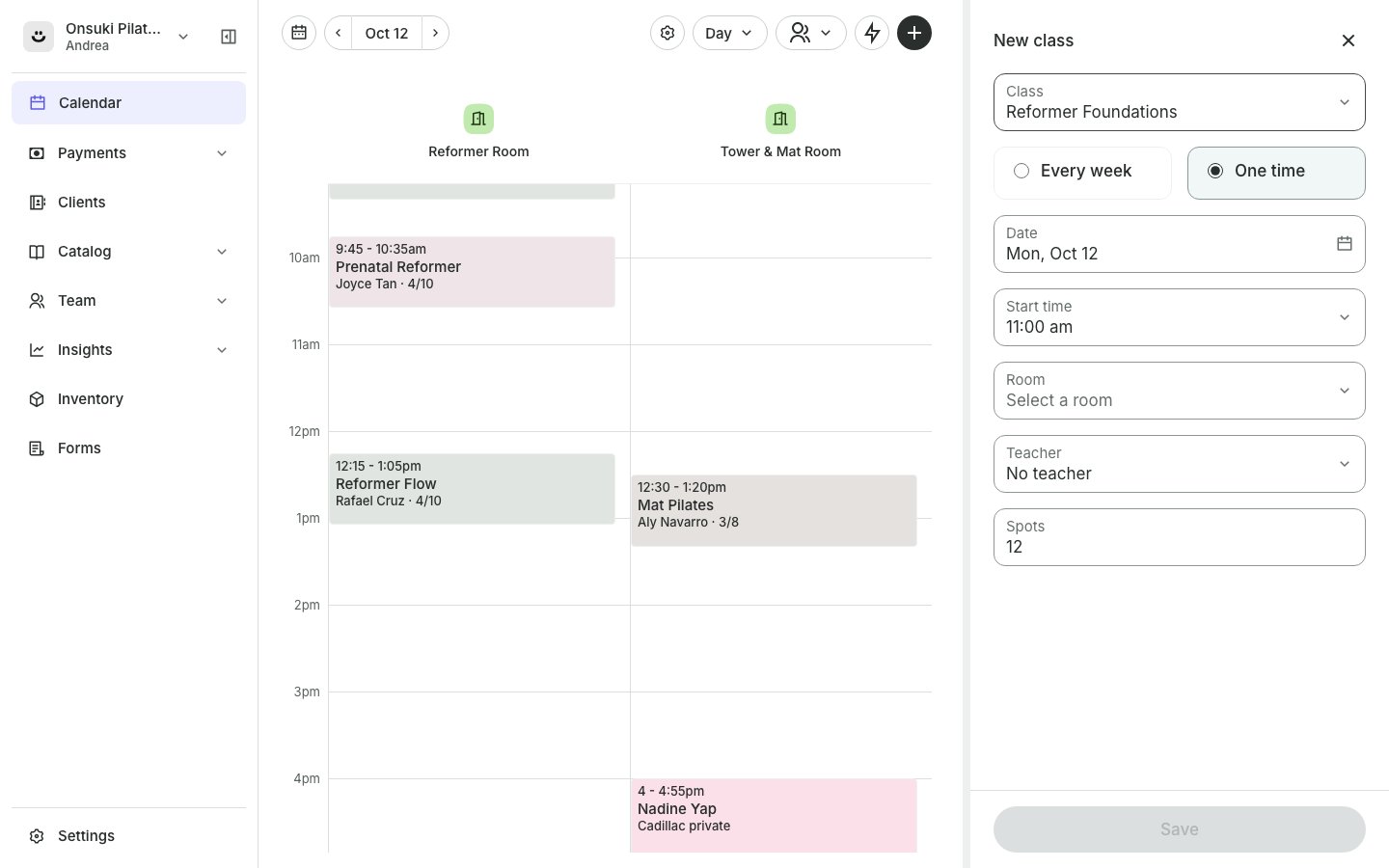
In the menu, go to **Calendar**, go to the day you want, then select **Add** and choose **Class**. To start at a set time, select an empty time on the grid first.
Under **Class**, choose which class it is.
**One time** is chosen, on the day you're looking at. To run it weekly, choose **Every week** and tick the days.
Check the **Start time**, choose the **Room** and the **Teacher** (or **No teacher**), and the number of **Spots**.
Select **Save**.
 You see "Class added." and the class is on the calendar.
## Good to know
* Don't see **Class** under **Add**? It shows when **Classes** is on and your business has at least one class. You also need the Manage classes permission.
* Don't see **One time**? Adding a single date also needs the Other team members' calendars permission. Without it, choose **Every week**.
* If the room or the teacher is already busy at that time, Onsuki skips it and tells you.
* To change or stop a weekly time later, open the class in **Catalog**, **Classes**. See [Schedule classes](/business/catalog/classes/schedule-classes).
## Related articles
* [Schedule classes](/business/catalog/classes/schedule-classes)
* [Get around the calendar](/business/calendar/calendar-basics)
* [Manage a class roster and attendance](/business/calendar/class-roster)
This documentation is built and hosted on [Mintlify](https://mintlify.com), a developer documentation platform.
You see "Class added." and the class is on the calendar.
## Good to know
* Don't see **Class** under **Add**? It shows when **Classes** is on and your business has at least one class. You also need the Manage classes permission.
* Don't see **One time**? Adding a single date also needs the Other team members' calendars permission. Without it, choose **Every week**.
* If the room or the teacher is already busy at that time, Onsuki skips it and tells you.
* To change or stop a weekly time later, open the class in **Catalog**, **Classes**. See [Schedule classes](/business/catalog/classes/schedule-classes).
## Related articles
* [Schedule classes](/business/catalog/classes/schedule-classes)
* [Get around the calendar](/business/calendar/calendar-basics)
* [Manage a class roster and attendance](/business/calendar/class-roster)
This documentation is built and hosted on [Mintlify](https://mintlify.com), a developer documentation platform.