> ## Documentation Index
> Fetch the complete documentation index at: https://help.onsuki.com/llms.txt
> Use this file to discover all available pages before exploring further.
# Show your booking page on your website
> Put your services and schedule on your own website, with a Book button that opens your booking site.
export const WhoCanDoThis = ({permission, feature, plan, devices}) => {
const rows = [];
if (permission) rows.push(["Who can do this", `Owners, and anyone with the ${permission} permission`]);
if (feature) rows.push(["Feature", `${feature}, turned on in Settings, Business, Features`]);
if (plan) rows.push(["Plan", `${plan} and above`]);
if (devices) rows.push(["Works on", devices]);
if (!rows.length) return null;
return
{rows.map(([label, value]) =>
{label}: {value}
)}
;
};
Show your booking page inside a page of your own website, so clients can see your services, prices and schedule without leaving it. When a client selects **Book**, booking continues on your booking site in the full window, where they pick a time, enter their details and pay.
## Before you start
* Know your website's address exactly as it appears in the browser's address bar on the page where the booking page will go, for example `https://www.example.com`. Only the part up to `.com` (or `.ph`, `.net` and so on) matters.
* Your website must open with `https://`. Most website builders do this for you.
## Allow your website
Your booking page shows only on the websites you list here. Every other site that tries to show it gets an empty frame.
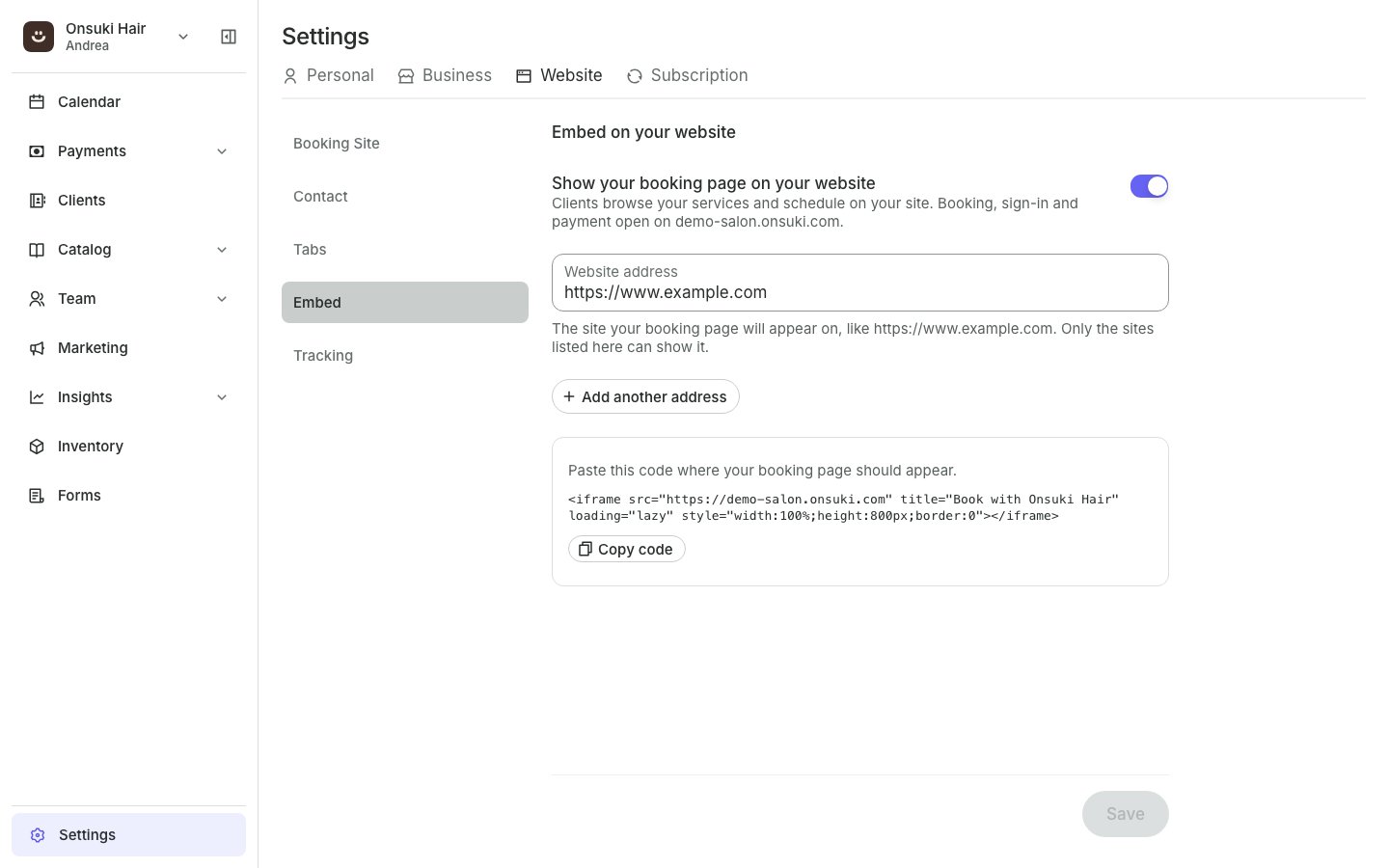
Go to **Settings**, **Website**, then **Embed**.
Turn on **Show your booking page on your website**.
In **Website address**, enter your site, like `https://www.example.com`. Enter the site only, without a page after it: `https://www.example.com`, not `https://www.example.com/book`. If you type `www.example.com`, Onsuki adds `https://` for you.
If your site also opens without `www`, select **Add another address** and enter that one too, for example `https://example.com`. You can list up to 5 addresses.
Select **Save**. The code to paste appears under your addresses.
 Your website can show the booking page within about a minute of saving.
## Add the code to your website
On **Embed**, select **Copy code**.
In your website builder, add an embed, HTML or code block where the booking page should appear, and paste the code into it. Then publish your website.
The code looks like this, with your own web address and business name:
```html theme={null}
```
### Open a different page first
The code opens your booking site's first page. To open a different tab, add its name to the address in `src`:
| To open | Use this `src` |
| - | - |
| Your services | `https://your-business.onsuki.com/services` |
| Your class schedule | `https://your-business.onsuki.com/schedule` |
| Your packages | `https://your-business.onsuki.com/packages` |
| Your about page | `https://your-business.onsuki.com/about` |
To find the address of any tab, open your booking site, select the tab and copy the address from the browser.
### Make it taller or shorter
The code sets the height to `800px`. If your booking page is longer, clients scroll inside it. To change the height, change `800px` in the code, for example to `1200px`.
## What clients see
* **Browsing stays on your website.** Clients move between your tabs, look at services, prices and the schedule inside your page.
* **Booking opens in the full window.** When a client selects **Book**, **Sign in**, or their account, your booking site opens in the whole browser window at your Onsuki address. They pick a time, enter their details, pay and get their confirmation there, the same as on your booking site.
* **Payment works as it does on your booking site.** Online payment, a receipt upload, or **Pay in person**, whichever you offer. Nothing about the payment or the client's account is shown inside your website.
* **After booking, clients stay on your booking site.** The confirmation page is on your booking site, not on your website. Use the browser's back button to return.
Booking opens in the full window on purpose: browsers do not let a page inside another website remember a sign-in or a booking in progress, and payment pages refuse to open inside another website.
## On phones
The booking page fits the width of your page on a phone. Because it sits inside your page, a client scrolls it inside the frame. On a phone, a button that opens your booking site in full is often easier: on **Settings**, **Website**, **Booking Site**, select **Copy Book now button** and paste it into your website the same way. You can use both, for example the frame on computers and the button near the top of the page.
## For website builders
Every builder has a place to paste embed code. Look for a block or element named:
* **WordPress**: a **Custom HTML** block.
* **Squarespace**: a **Code** block.
* **Shopify**: a **Custom Liquid** section in the theme editor, or the code view of a page.
* **Wix**: **Embed code** or **Embed HTML** from the **Add** panel.
Paste the code, save, and publish. Some builders show embeds only on the published site, not in their editor's preview.
## If it doesn't show
If the frame is empty, gray, or says the site refused to connect:
The address must match exactly. `https://www.example.com` and `https://example.com` are two different sites to a browser, so list both if your site opens with and without `www`. Open the page where you pasted the code, copy the address from the browser, and compare it with what is on **Embed**.
A change can take a minute or two to reach every visitor. Wait two minutes and reload the page.
On **Settings**, **Website**, **Embed**, check that **Show your booking page on your website** is on and your address is saved. Turning it off stops every website from showing your booking page.
Some builders place pasted code inside their own frame on a different address, which then has to be allowed too. If your address matches and it still doesn't show, use the **Book now** button from **Settings**, **Website**, **Booking Site** instead, or message us at [support@onsuki.com](mailto:support@onsuki.com) with your website's address.
## Good to know
* **What is refused, and why.** The address must start with `https://`, be your own website (not your Onsuki address), have no page after it and no port number. When an address is refused, Onsuki says which part to fix.
* **Removing a site.** Clear its address and select **Save**, or turn off **Show your booking page on your website** to remove them all. The change reaches visitors within about a minute.
* **Your plan.** Embed is part of the Business and Clinic plans. On another plan, **Embed** says how to change your plan. See [Change your plan](/business/billing/change-your-plan).
* **Your booking site's address stays the same.** Clients can still book at your Onsuki address and from your link and QR code.
## Related articles
* [Share your booking link](/business/booking-site/share-your-link)
* [Your booking site](/business/booking-site/your-booking-site)
* [What clients see](/business/booking-site/what-clients-see)
* [Add Meta Pixel or Google Analytics](/business/booking-site/tracking)
This documentation is built and hosted on [Mintlify](https://mintlify.com), a developer documentation platform.
Your website can show the booking page within about a minute of saving.
## Add the code to your website
On **Embed**, select **Copy code**.
In your website builder, add an embed, HTML or code block where the booking page should appear, and paste the code into it. Then publish your website.
The code looks like this, with your own web address and business name:
```html theme={null}
```
### Open a different page first
The code opens your booking site's first page. To open a different tab, add its name to the address in `src`:
| To open | Use this `src` |
| - | - |
| Your services | `https://your-business.onsuki.com/services` |
| Your class schedule | `https://your-business.onsuki.com/schedule` |
| Your packages | `https://your-business.onsuki.com/packages` |
| Your about page | `https://your-business.onsuki.com/about` |
To find the address of any tab, open your booking site, select the tab and copy the address from the browser.
### Make it taller or shorter
The code sets the height to `800px`. If your booking page is longer, clients scroll inside it. To change the height, change `800px` in the code, for example to `1200px`.
## What clients see
* **Browsing stays on your website.** Clients move between your tabs, look at services, prices and the schedule inside your page.
* **Booking opens in the full window.** When a client selects **Book**, **Sign in**, or their account, your booking site opens in the whole browser window at your Onsuki address. They pick a time, enter their details, pay and get their confirmation there, the same as on your booking site.
* **Payment works as it does on your booking site.** Online payment, a receipt upload, or **Pay in person**, whichever you offer. Nothing about the payment or the client's account is shown inside your website.
* **After booking, clients stay on your booking site.** The confirmation page is on your booking site, not on your website. Use the browser's back button to return.
Booking opens in the full window on purpose: browsers do not let a page inside another website remember a sign-in or a booking in progress, and payment pages refuse to open inside another website.
## On phones
The booking page fits the width of your page on a phone. Because it sits inside your page, a client scrolls it inside the frame. On a phone, a button that opens your booking site in full is often easier: on **Settings**, **Website**, **Booking Site**, select **Copy Book now button** and paste it into your website the same way. You can use both, for example the frame on computers and the button near the top of the page.
## For website builders
Every builder has a place to paste embed code. Look for a block or element named:
* **WordPress**: a **Custom HTML** block.
* **Squarespace**: a **Code** block.
* **Shopify**: a **Custom Liquid** section in the theme editor, or the code view of a page.
* **Wix**: **Embed code** or **Embed HTML** from the **Add** panel.
Paste the code, save, and publish. Some builders show embeds only on the published site, not in their editor's preview.
## If it doesn't show
If the frame is empty, gray, or says the site refused to connect:
The address must match exactly. `https://www.example.com` and `https://example.com` are two different sites to a browser, so list both if your site opens with and without `www`. Open the page where you pasted the code, copy the address from the browser, and compare it with what is on **Embed**.
A change can take a minute or two to reach every visitor. Wait two minutes and reload the page.
On **Settings**, **Website**, **Embed**, check that **Show your booking page on your website** is on and your address is saved. Turning it off stops every website from showing your booking page.
Some builders place pasted code inside their own frame on a different address, which then has to be allowed too. If your address matches and it still doesn't show, use the **Book now** button from **Settings**, **Website**, **Booking Site** instead, or message us at [support@onsuki.com](mailto:support@onsuki.com) with your website's address.
## Good to know
* **What is refused, and why.** The address must start with `https://`, be your own website (not your Onsuki address), have no page after it and no port number. When an address is refused, Onsuki says which part to fix.
* **Removing a site.** Clear its address and select **Save**, or turn off **Show your booking page on your website** to remove them all. The change reaches visitors within about a minute.
* **Your plan.** Embed is part of the Business and Clinic plans. On another plan, **Embed** says how to change your plan. See [Change your plan](/business/billing/change-your-plan).
* **Your booking site's address stays the same.** Clients can still book at your Onsuki address and from your link and QR code.
## Related articles
* [Share your booking link](/business/booking-site/share-your-link)
* [Your booking site](/business/booking-site/your-booking-site)
* [What clients see](/business/booking-site/what-clients-see)
* [Add Meta Pixel or Google Analytics](/business/booking-site/tracking)
This documentation is built and hosted on [Mintlify](https://mintlify.com), a developer documentation platform.